Document and Analyze your Operation
Access the 'History' section of the web application's side menu.
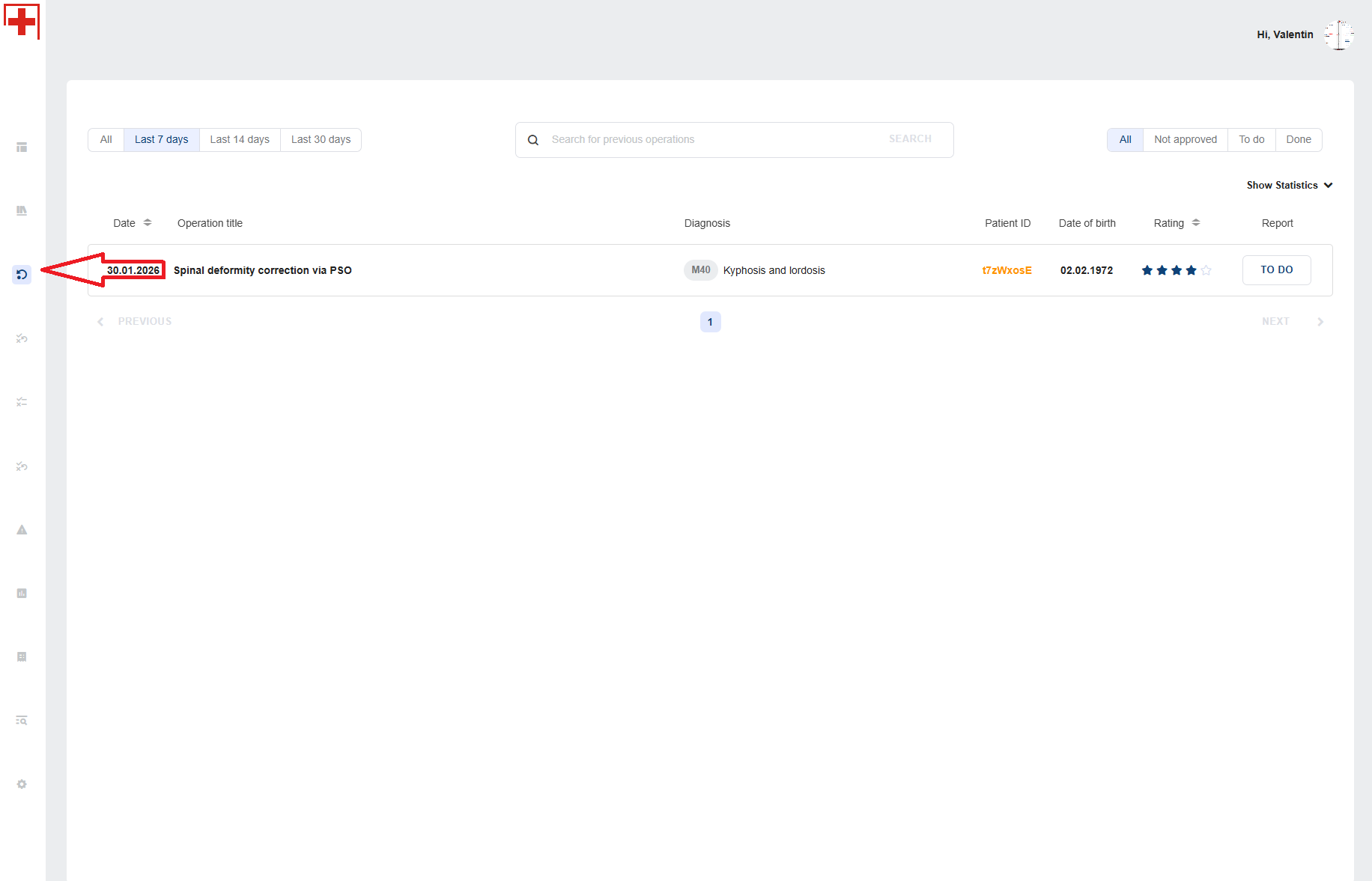
You can filter your operations in 'History' by:
- Time (last 7 days; last 14 days; last 30 days)
- Status (Not approved = Intra-OP Pin; To do = OP report not sent; Done = OP report sent)
You can also search your operations in the top-center search bar.
Click the operation to open the 'OPERATION' section and see your operation statistics (Timeline view).
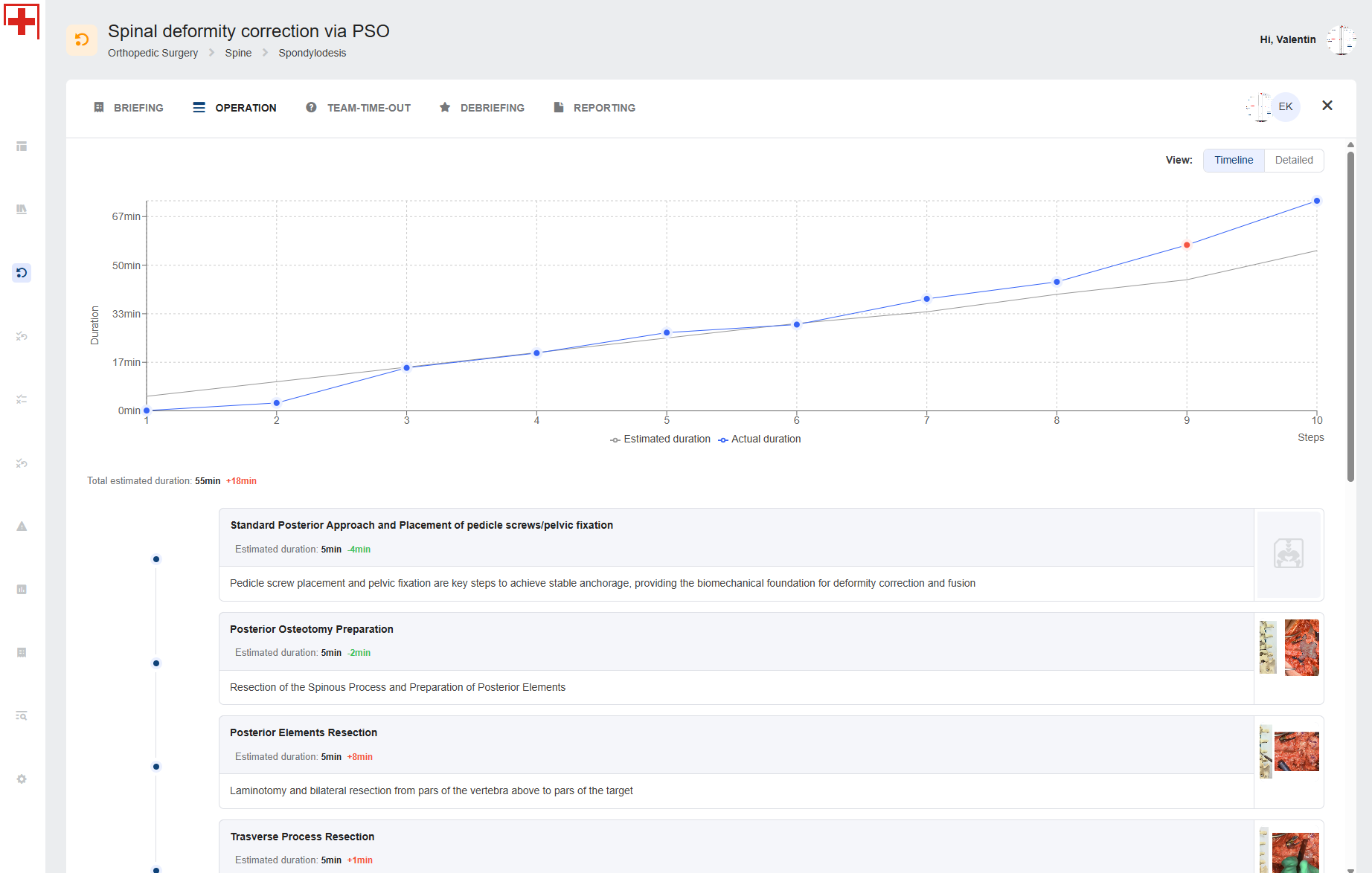
If you click 'Detailed', you will see the time/step deviation for each step.
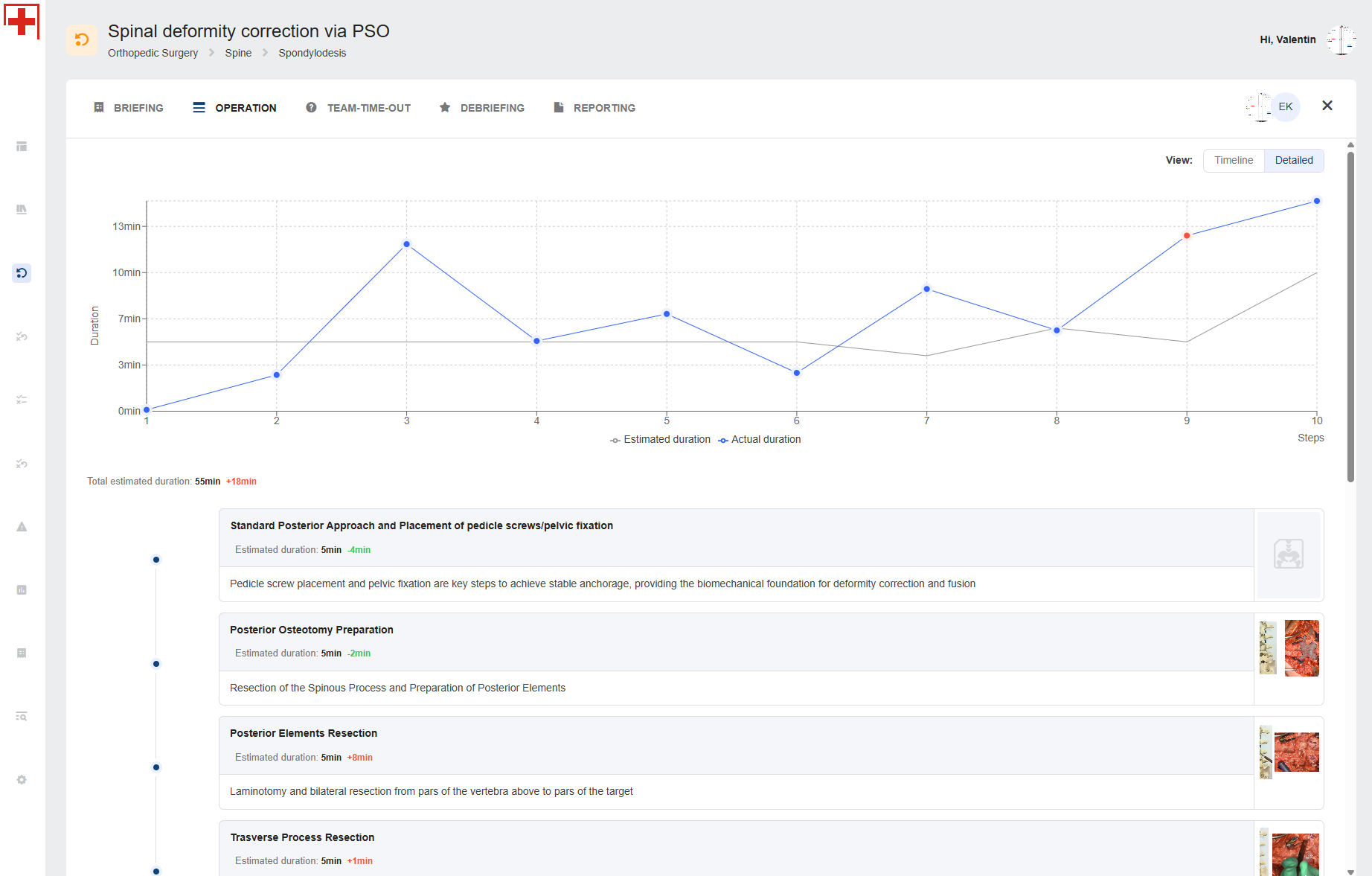
Hover over the red dot 'Observation' to see the observation notes.
You can view your observations in the 'DEBRIEFING' section.
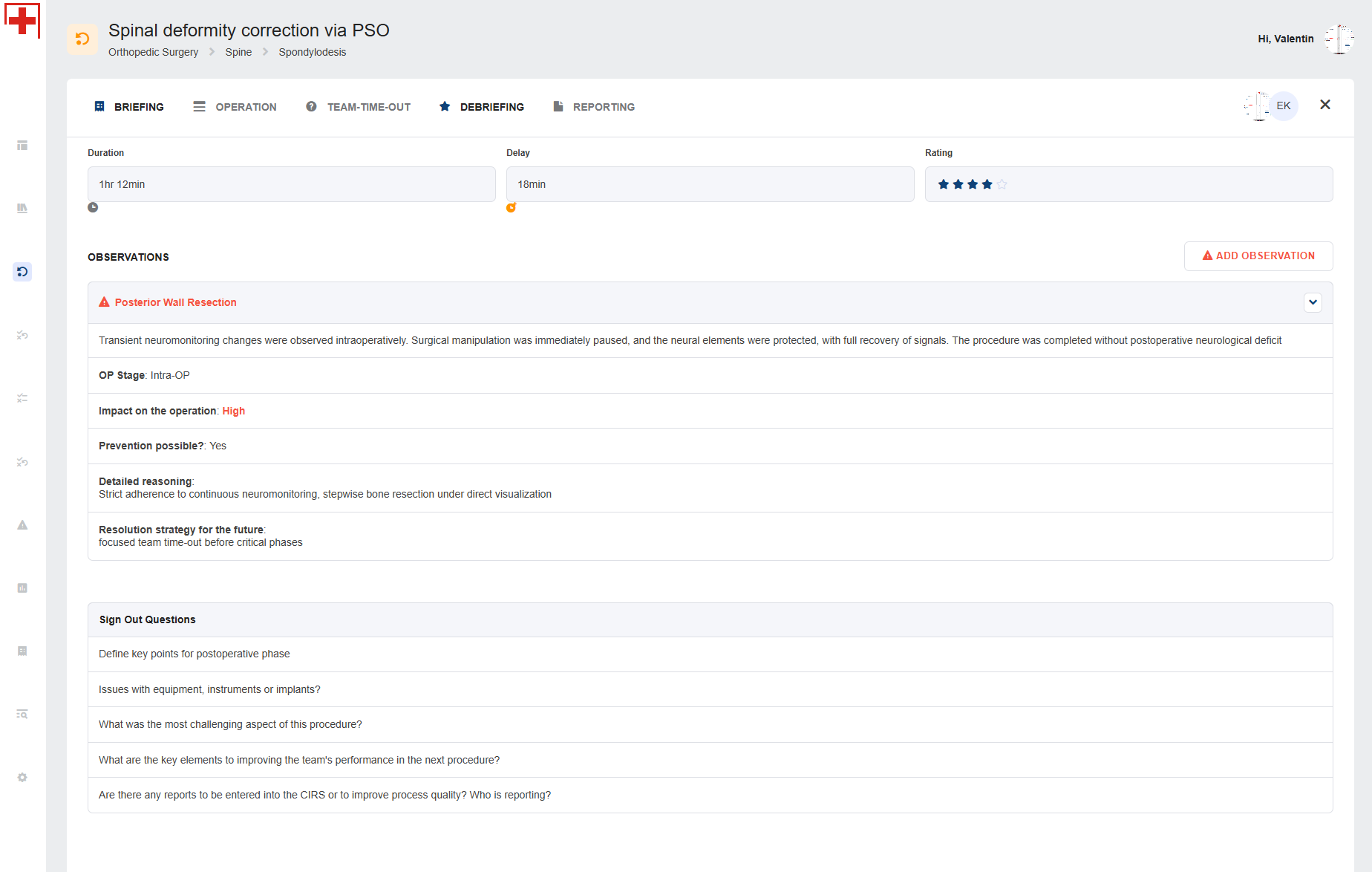
You can delete or edit previously marked observations by clicking the arrow icon shown below.

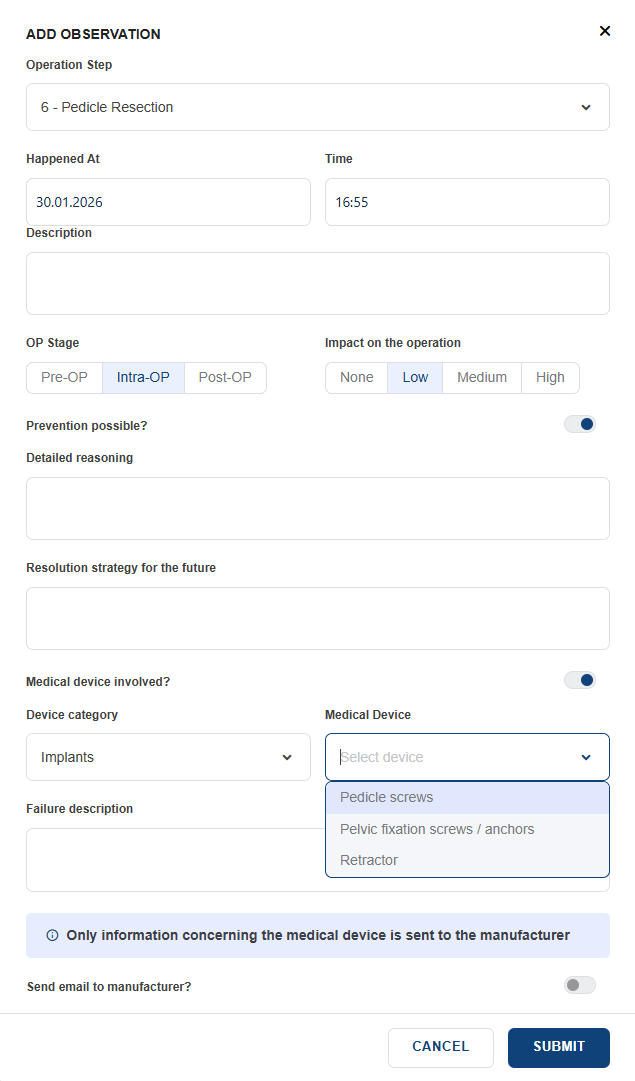
Click 'ADD OBSERVATION' to add an observation postoperatively.
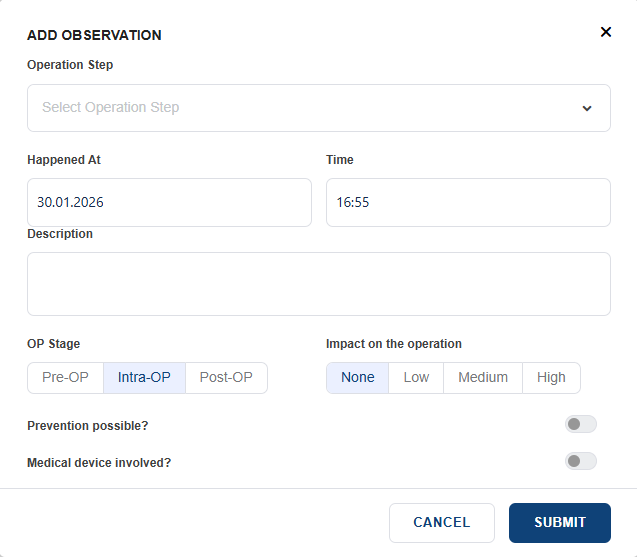
You can add both 'Human'- and 'Material'-based incidents. For the latter, click 'Medical device involved'.
Click the 'REPORTING' section to access the OP report.
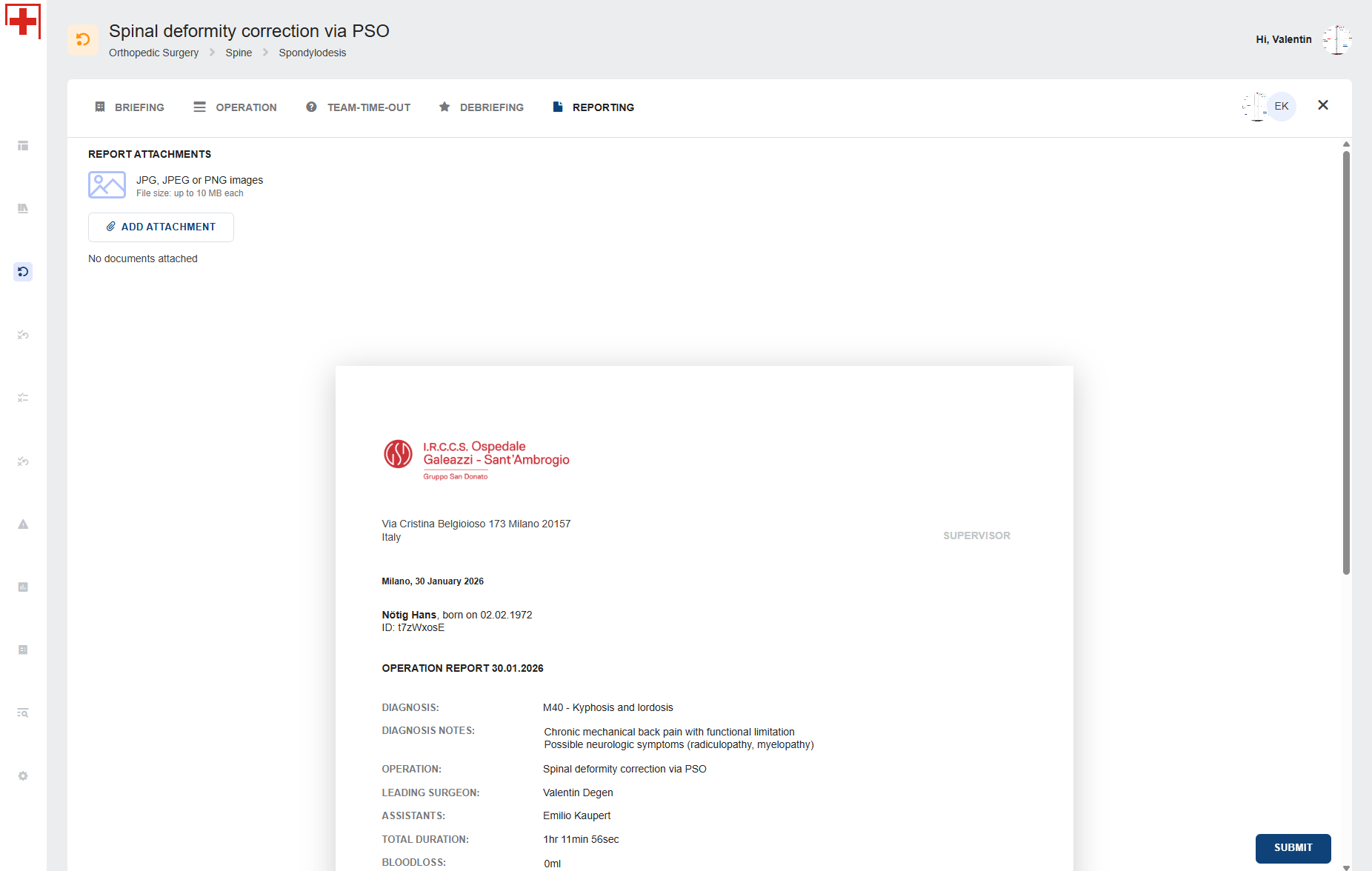
You can add attachments (e.g., intra-op imaging) by clicking 'ADD ATTACHMENT'.
You can also edit some of the report's sections, i.e., 'Blood Loss,' 'Implants,' 'Indication,' 'Operation Technique,' or add a 'Post-op ODI'.
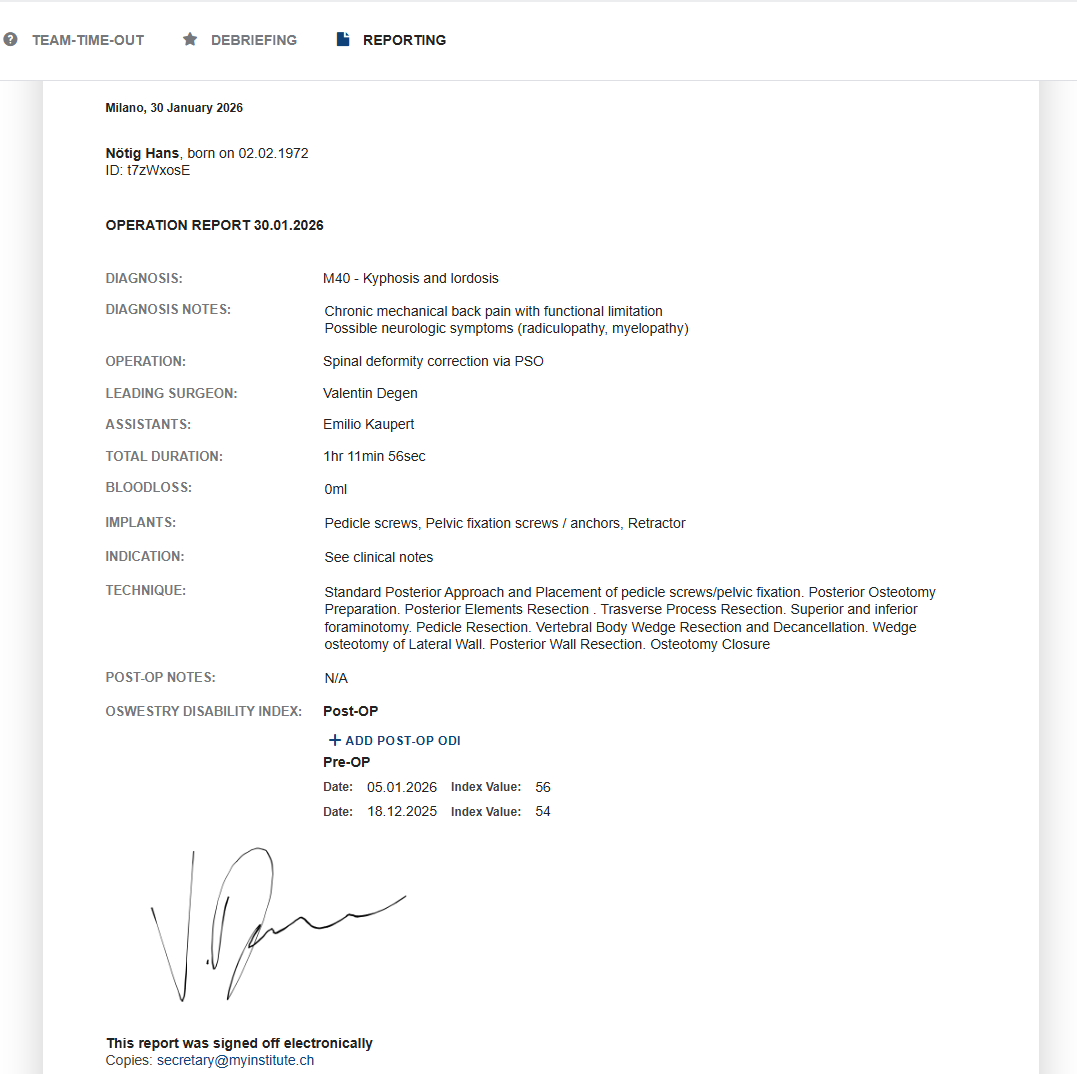
If you click 'SUBMIT', your OP report is sent to the predefined email addresses in OP Report settings.
