Plan your Operation
Template Library Overview
The Template Library is your starting point for planning standardized surgical procedures via the web application. From here, you can choose a template that fits your case, click on 'Plan OP' (blue arrow) and begin customizing it to the patient's needs.
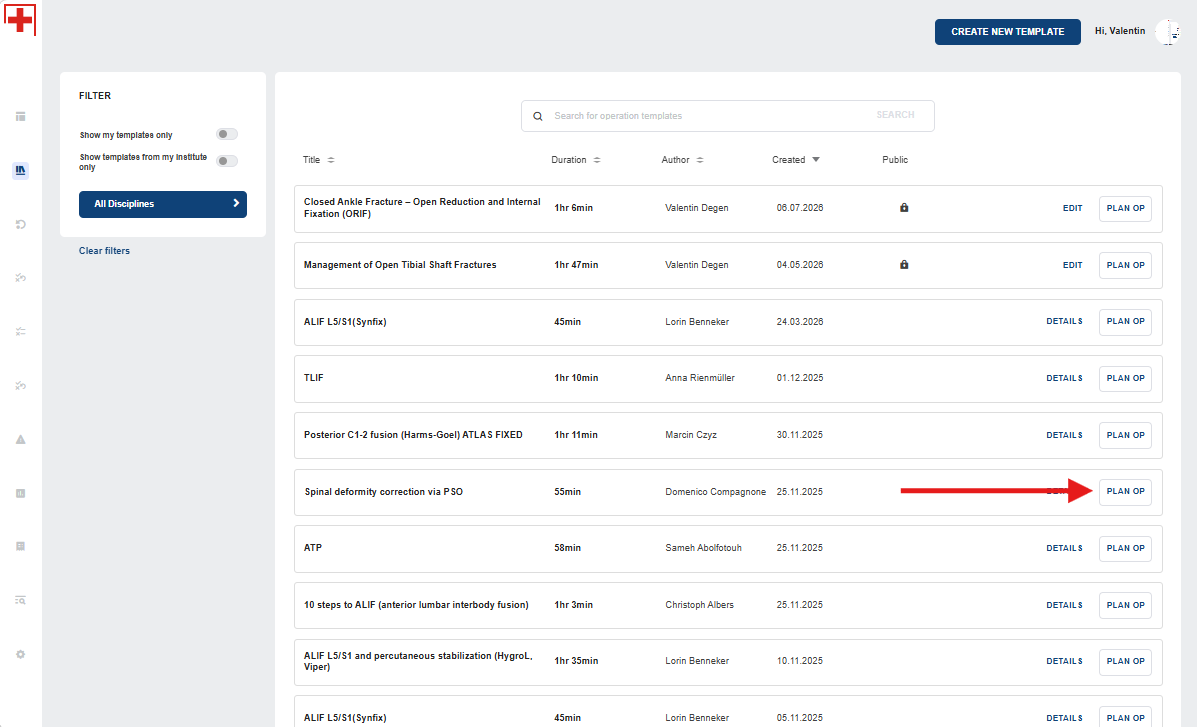
How to Plan an Operation
Follow the steps below to plan an operation using the IMPedia web application:
1.1. Define Operation Information
- Select the date and time of the operation
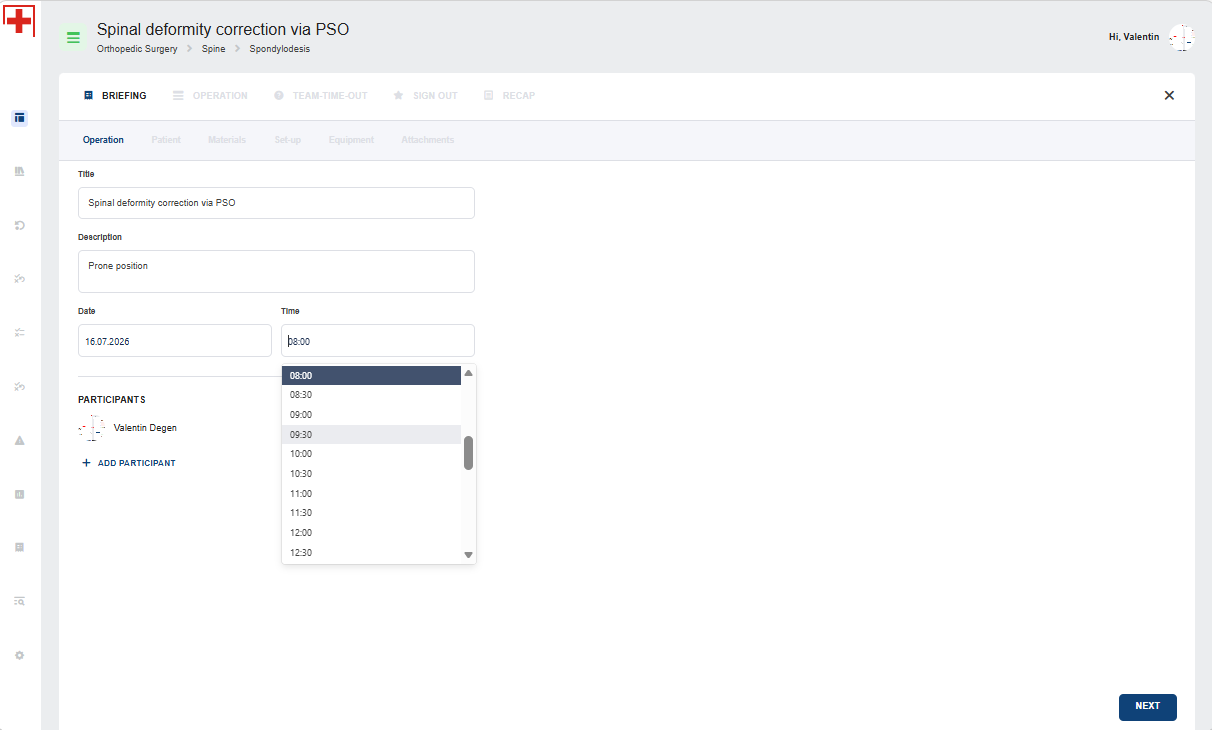
1.2. Define Operation Participants and their Roles

Click 'Next' to advance to the Patient section or any next page.
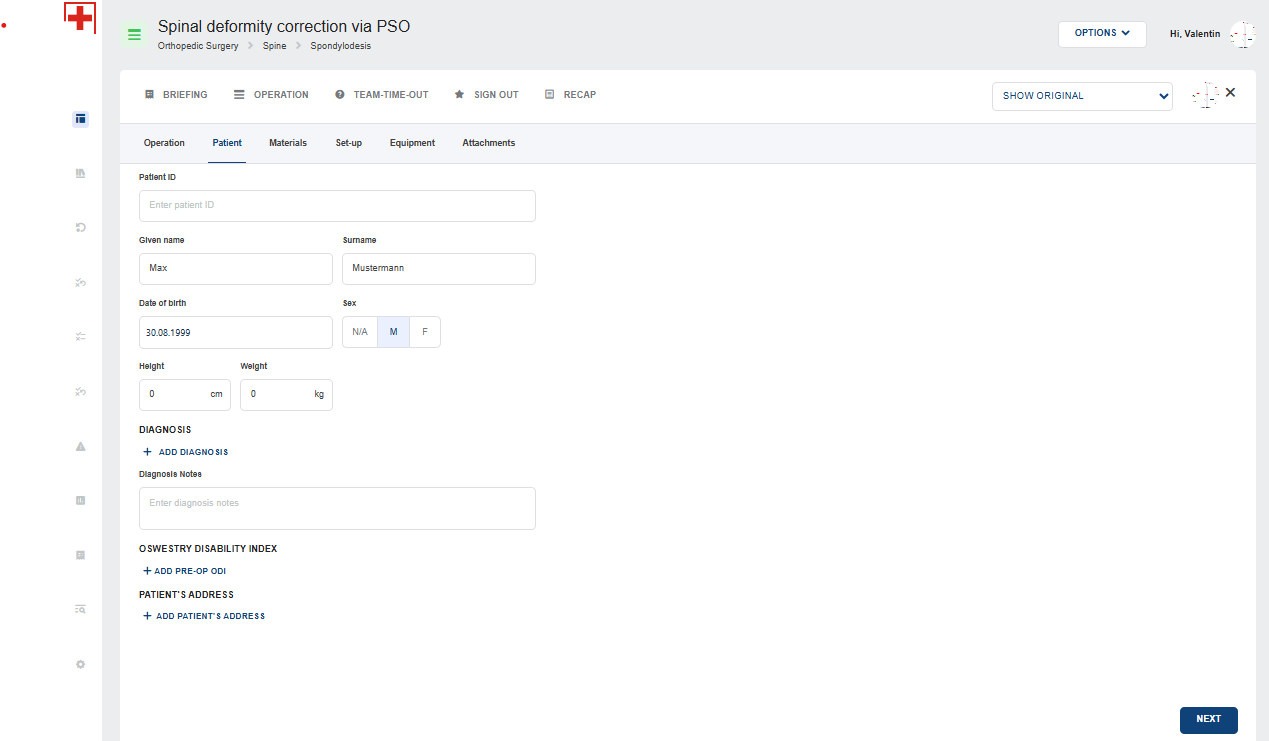
1.3. Add Patient Information
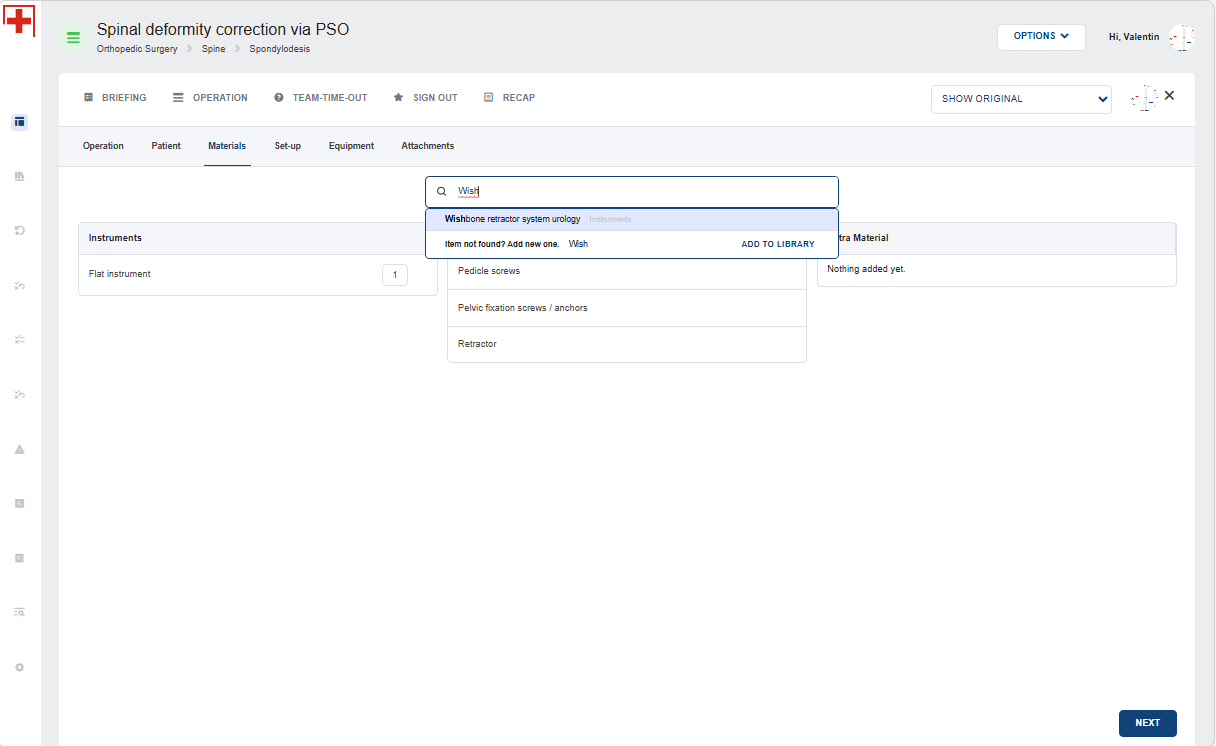
1.4. Adjust Material if needed
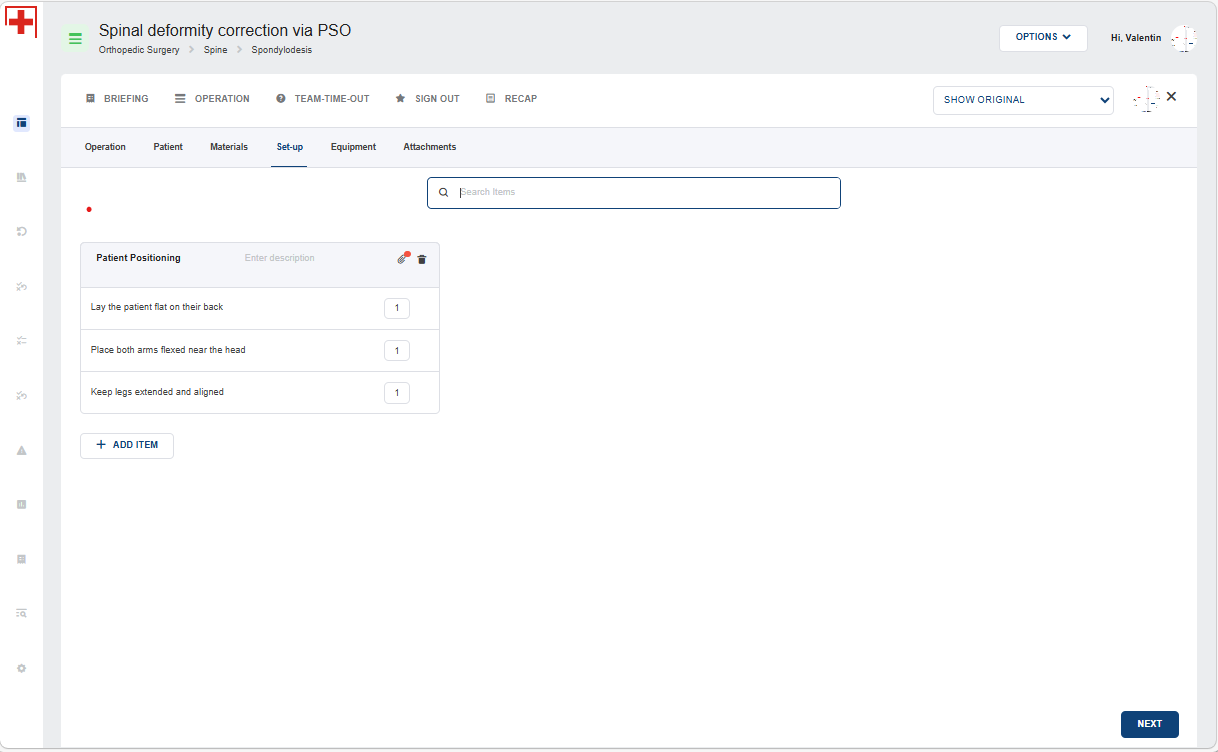
1.4. Check Set-up Items
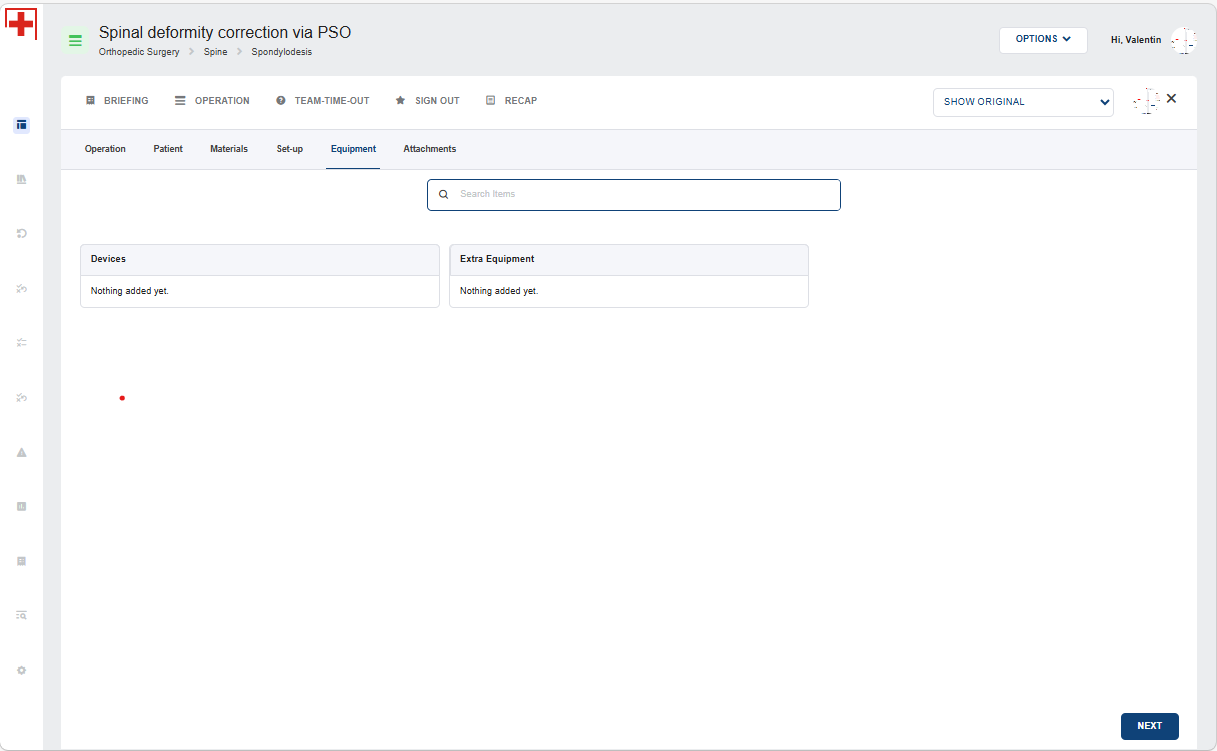
1.5. Check Equipment
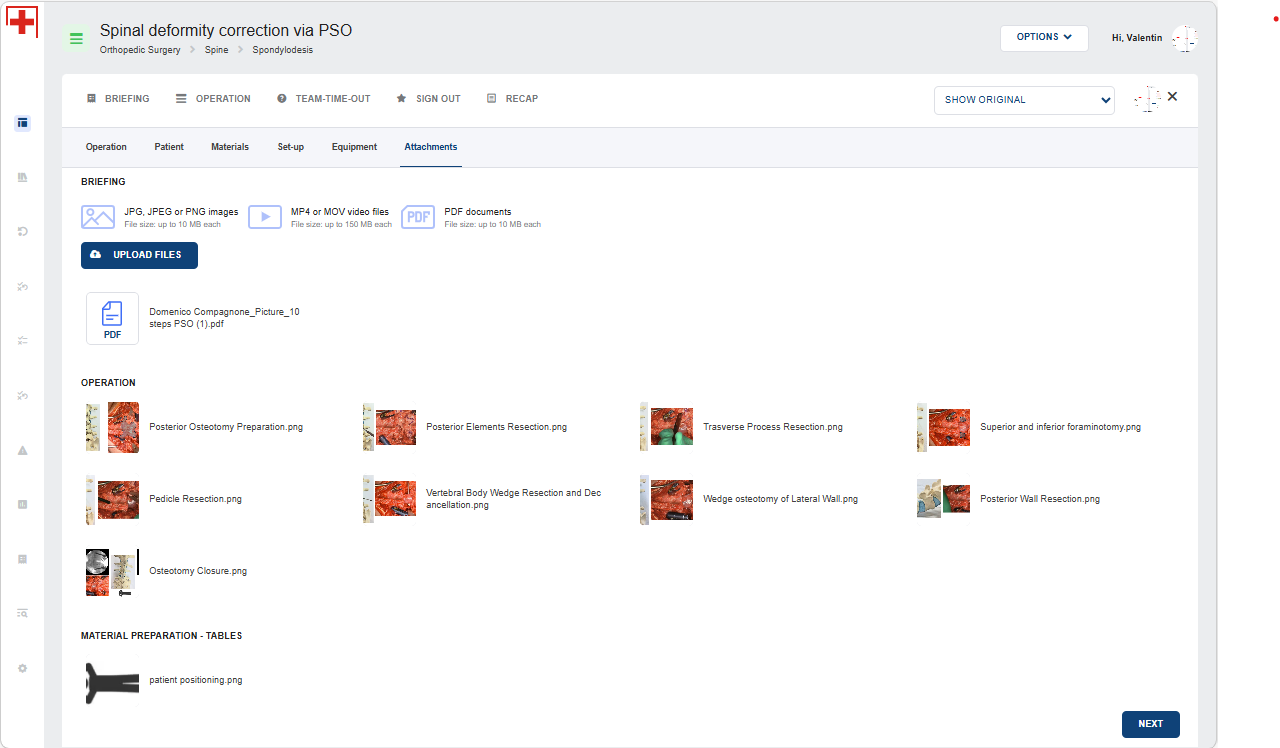
1.6. Check Attachments
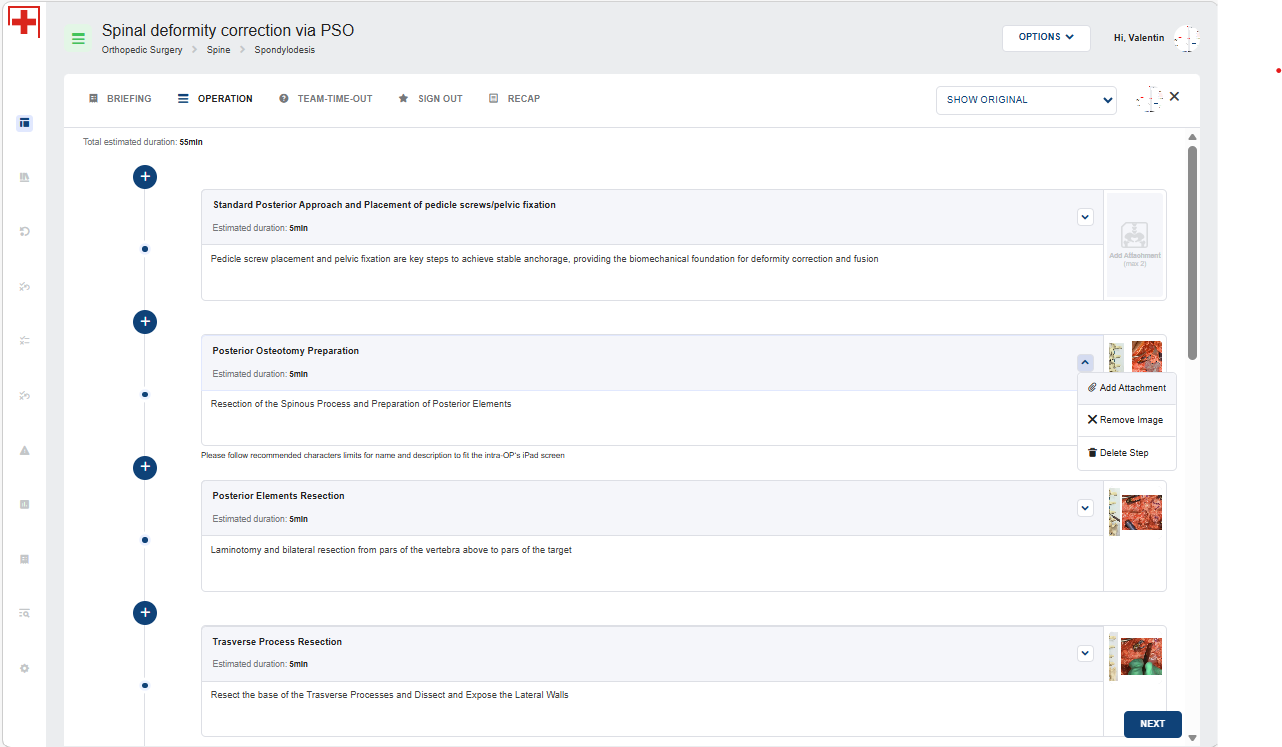
2. Adjust Operation Workflow
- Adjust any step, e.g. its duration due to patient-specific circumstances
- Add additional step(s) if needed
- Add patient specific attachments to steps

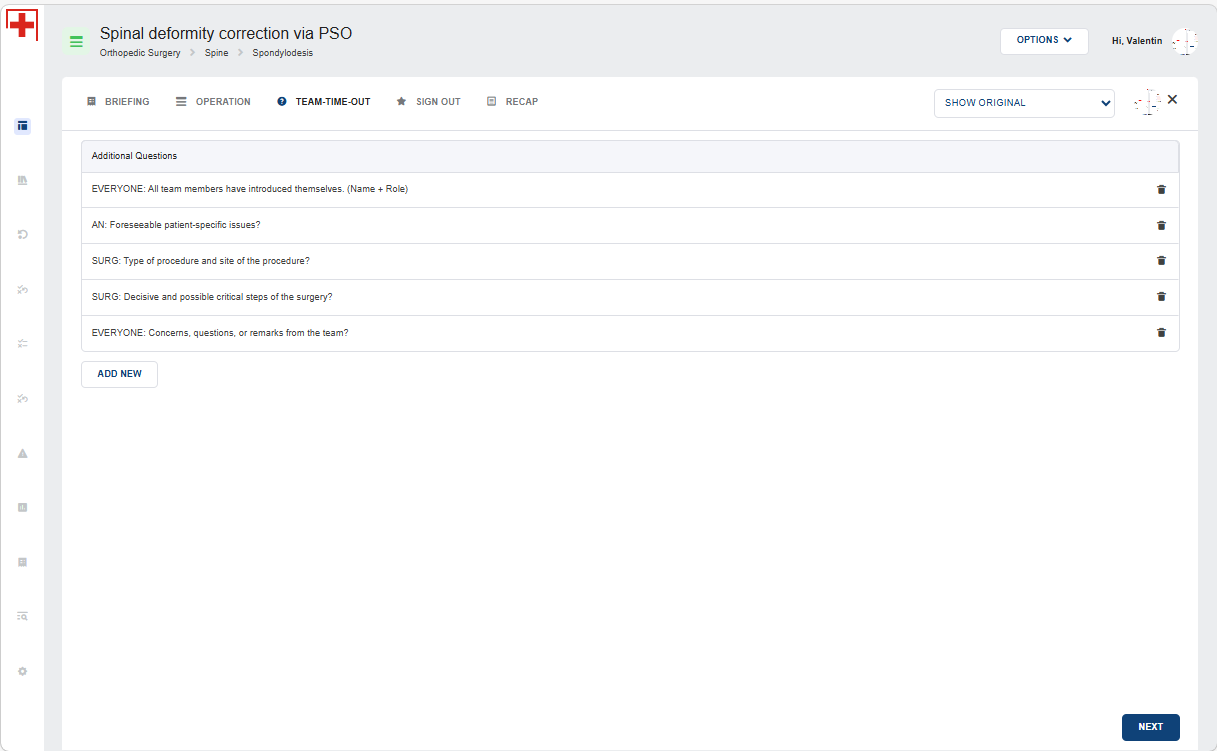
3. Adjust Institution's Team-Time-Out questions if needed
- You can add additional patient-specific questions by clicking 'Add New'
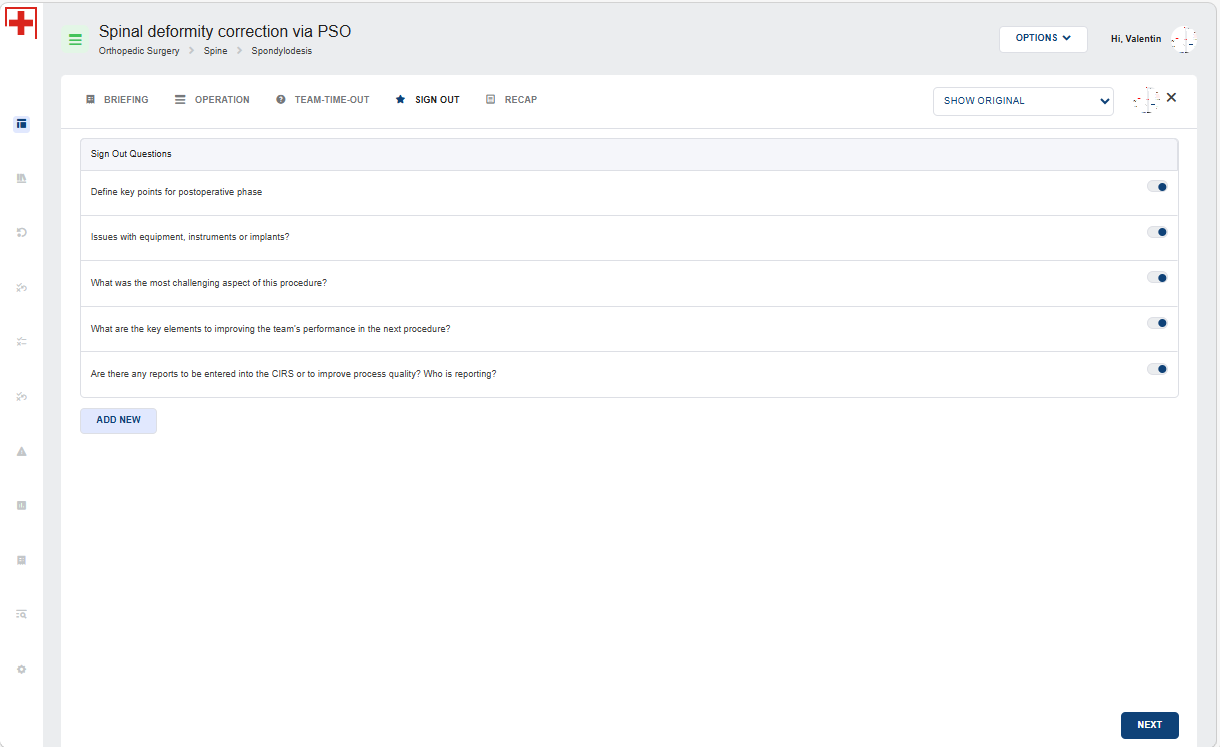
4. Adjust Institution's Sign-Out questions if needed
- You can add additional patient-specific questions by clicking 'Add New'
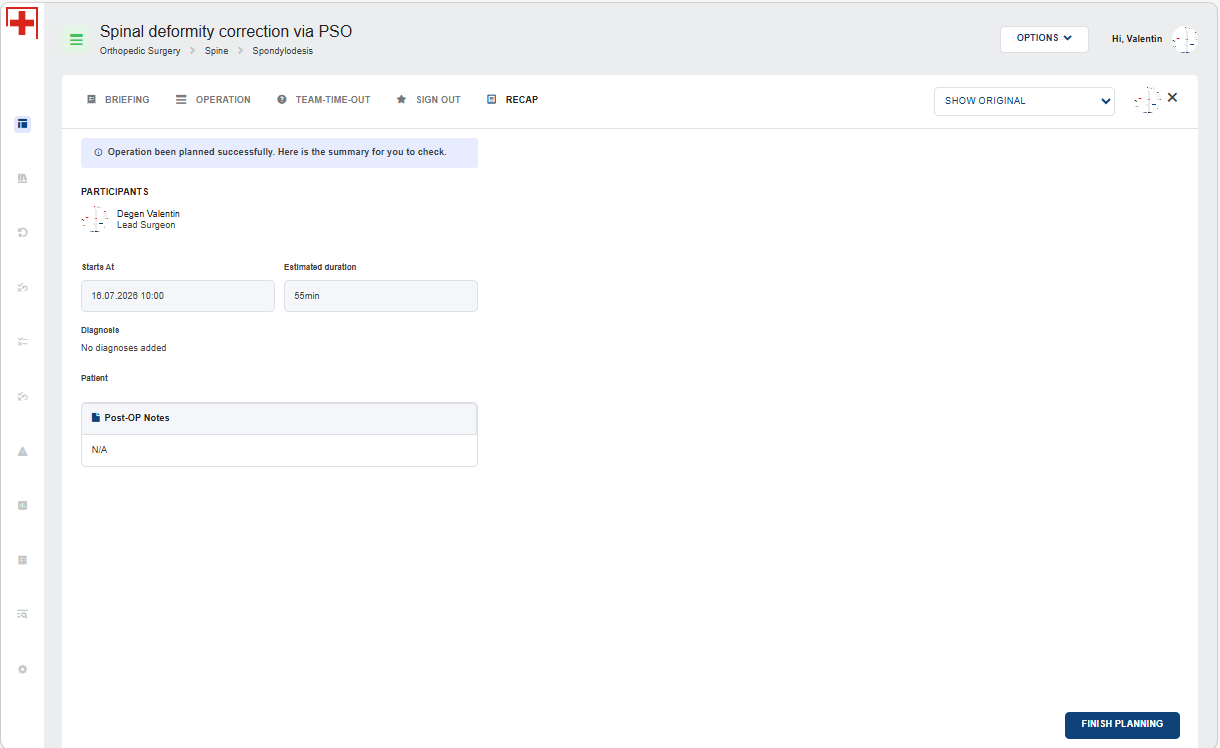
5. Review your planned operation in the 'RECAP' section

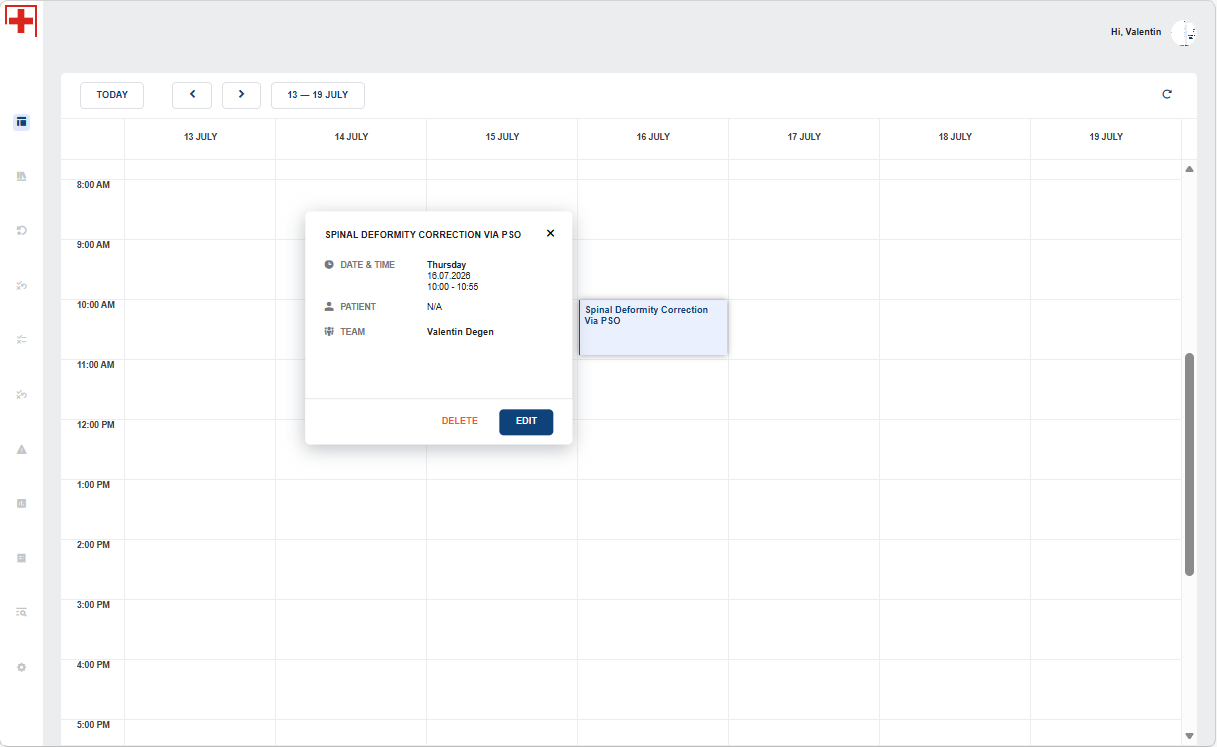
6. See your planned operation in the Dashboard